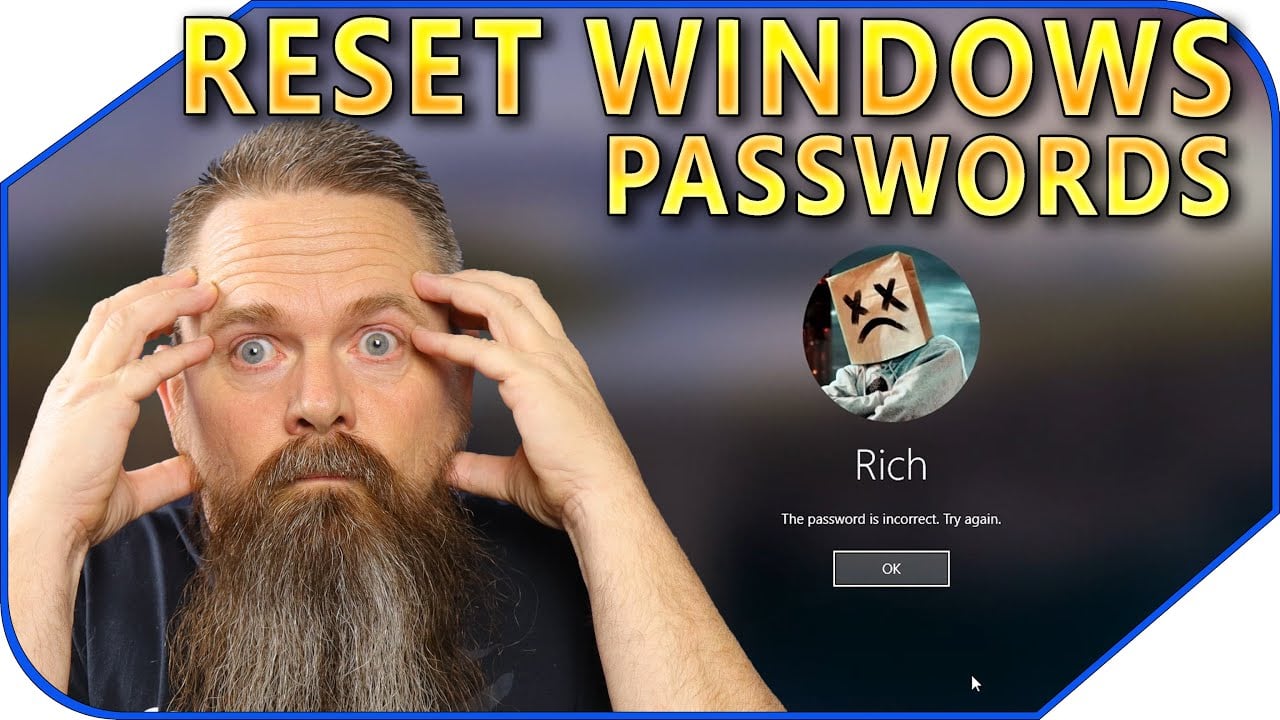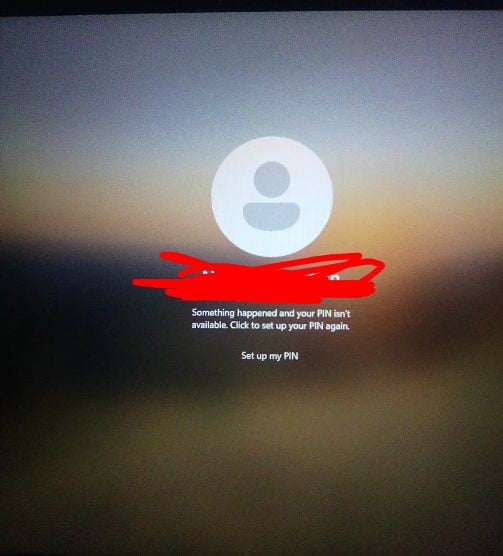
win PE, Sergei strelec
Let me know if you succeed
Can you explain
translate?
Pulled from there and translated
There is another way to do this, although it is a little more complicated, but safer than the other ways, (and also simpler in terms of knowledge, it does not require knowledge of CMD and dealing with it at all).
The way is by uploading it with an external disk that we burned to the computer through its BOS. And from there we can do it easily.
Preparation
A USB flash drive of at least 8GB (GB) must be prepared.
Attention! If you don’t have anything on the USB drive, we’re going to format it!
After we have a USB flash drive. We will download the file of the disc that we will install on the USB drive.
You can download from the official website here or from the forum here.
Please note! The download from the official website is blocked on Netfree.
Now we will install it on a blank USB drive:
it can be done by this guide, credit to @מרעידים-country.
Or by the next post. CREDIT TO @KINGYOS
Play the disc
Before we begin, make sure to follow the instructions accurately so as not to cause damage to your computer.
After we have installed the file we downloaded on the USB drive. We’ll put it on your computer and restart it. Now as soon as we see the company logo of our computer (photo). Press the Deiete key several times, and the F12 and F10 keys.
[Actually, you only need one of them, but every company has something different. For example, at Dell it’s f12, and at HP it’s delete, so if you already know how your company’s key is, just press it.]

After we clicked, a menu opened asking us how to operate the computer, (since on each computer it looks completely different, I didn’t bring a picture). We will look for the boot menu (on some computers it will open immediately when the BIOS opens, and on some we will have to find it and click on it).
In the menu, we will search for our USB and click on it (on old computers using the computer’s arrows, and on new ones there is a mouse).
After we have selected our USB drive, we will get the following menu:
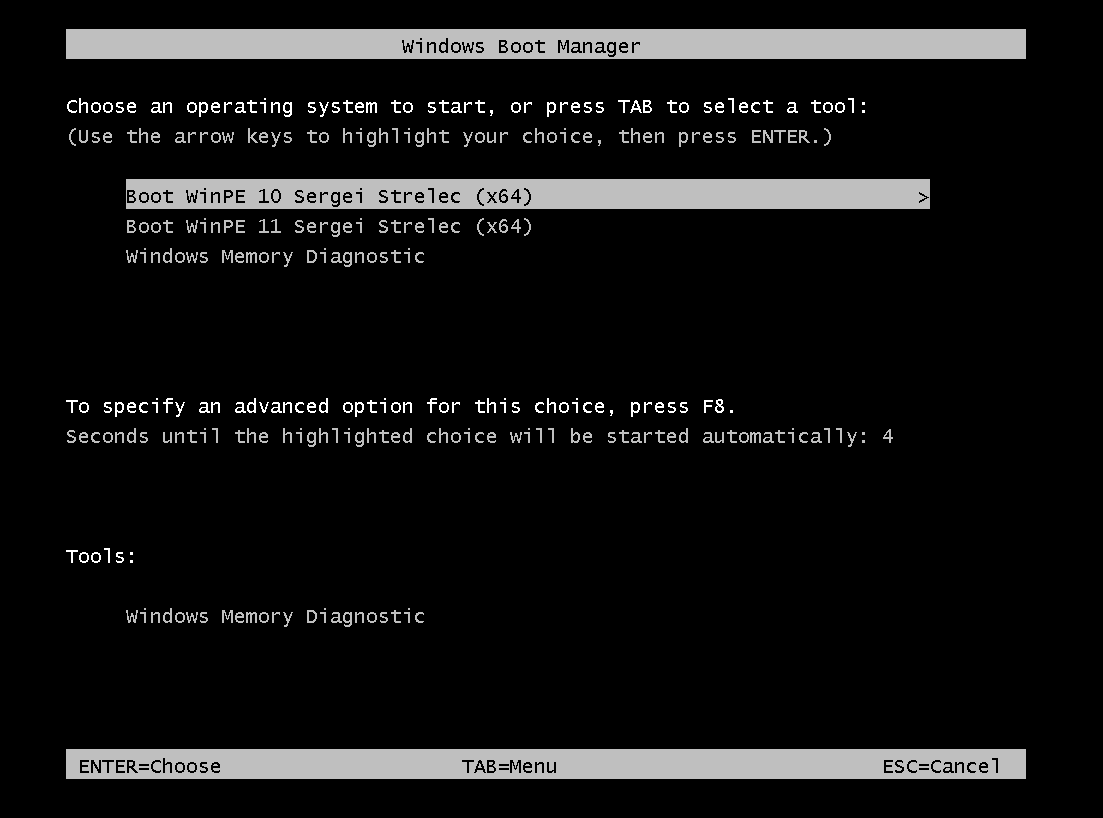
And we will select using the arrows of the computer, the type of our operating system, if we have Windows 10 we will just press enter, and for Windows 11 we will go down with the down arrow once and press enter.
Once we have selected our system the computer will load the system from our USB drive.

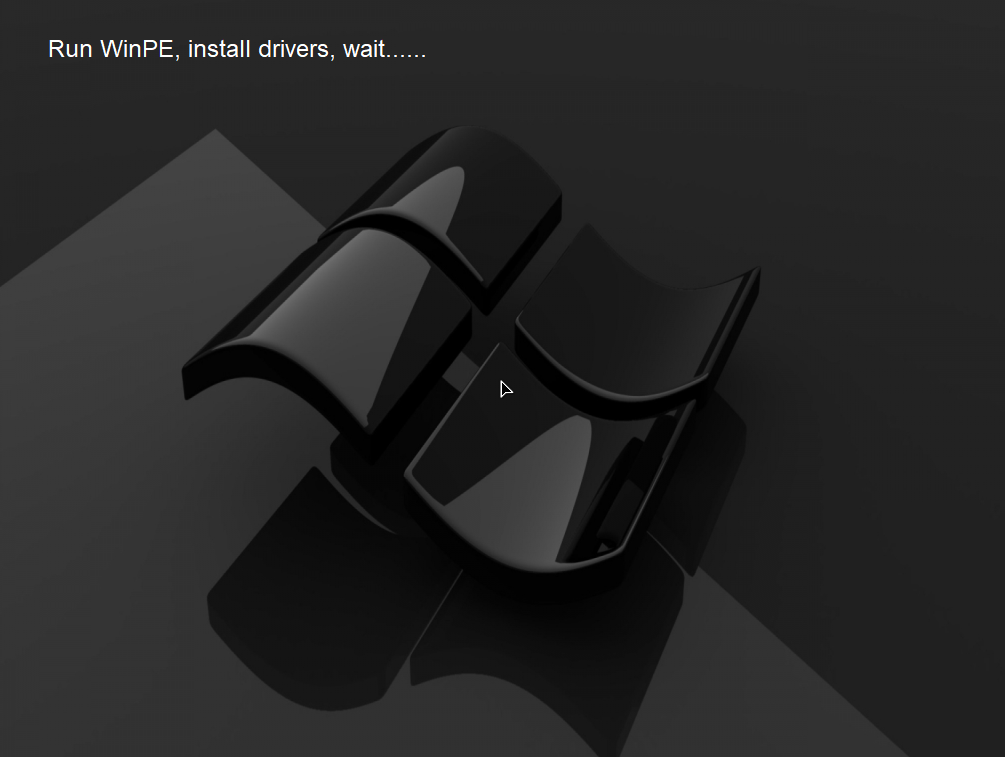
After the computer is up we will enter the system menu by clicking on the icon as it appears in the picture:
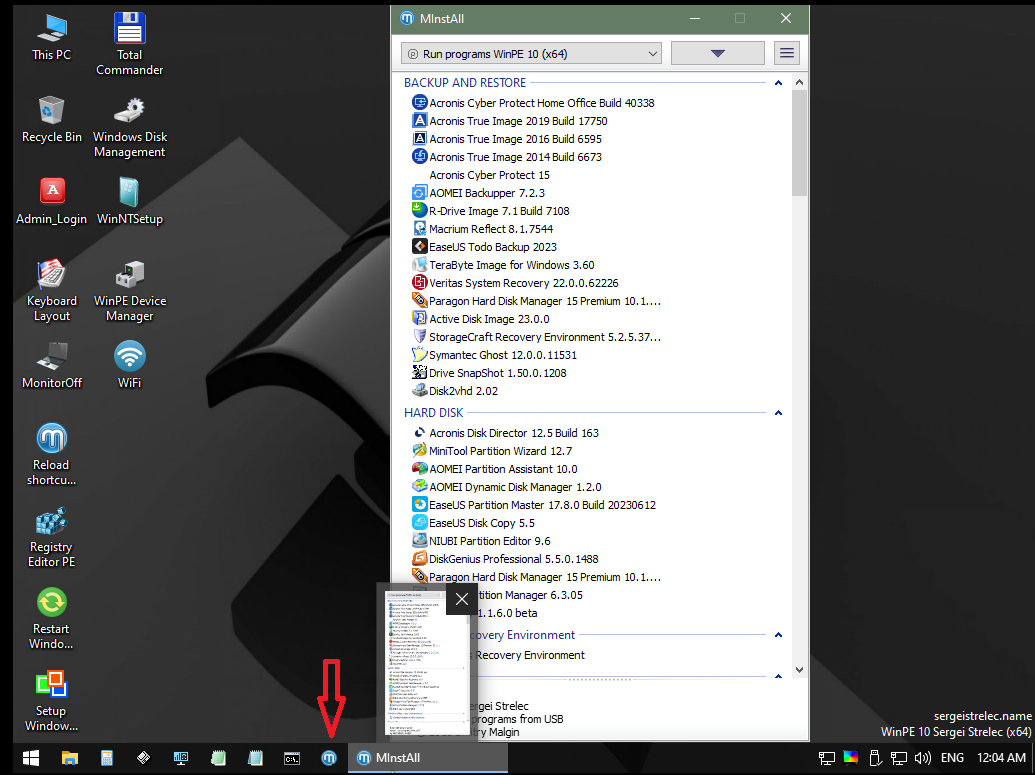
After clicking on it, a menu that appears in the image will open for us, now we will scroll down, and look for the group that appears in the picture.
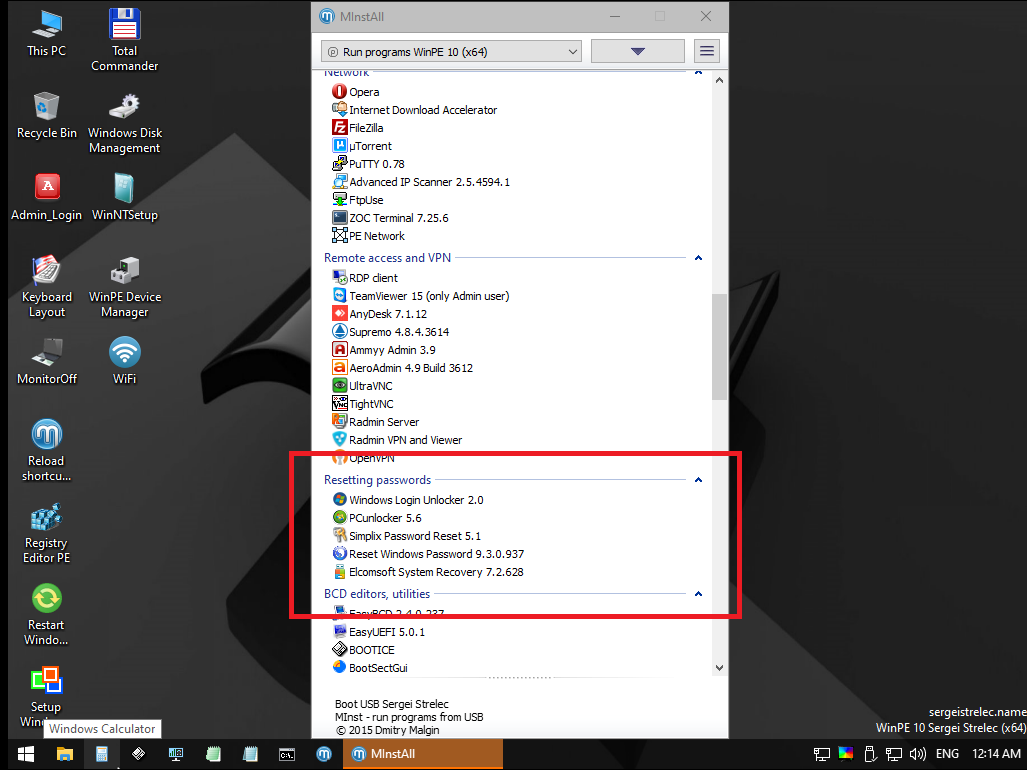
In this group there are several tools that can help us. The simplest and most recommended tool is Simiplix (the third on the list). Click on it and get the following window:
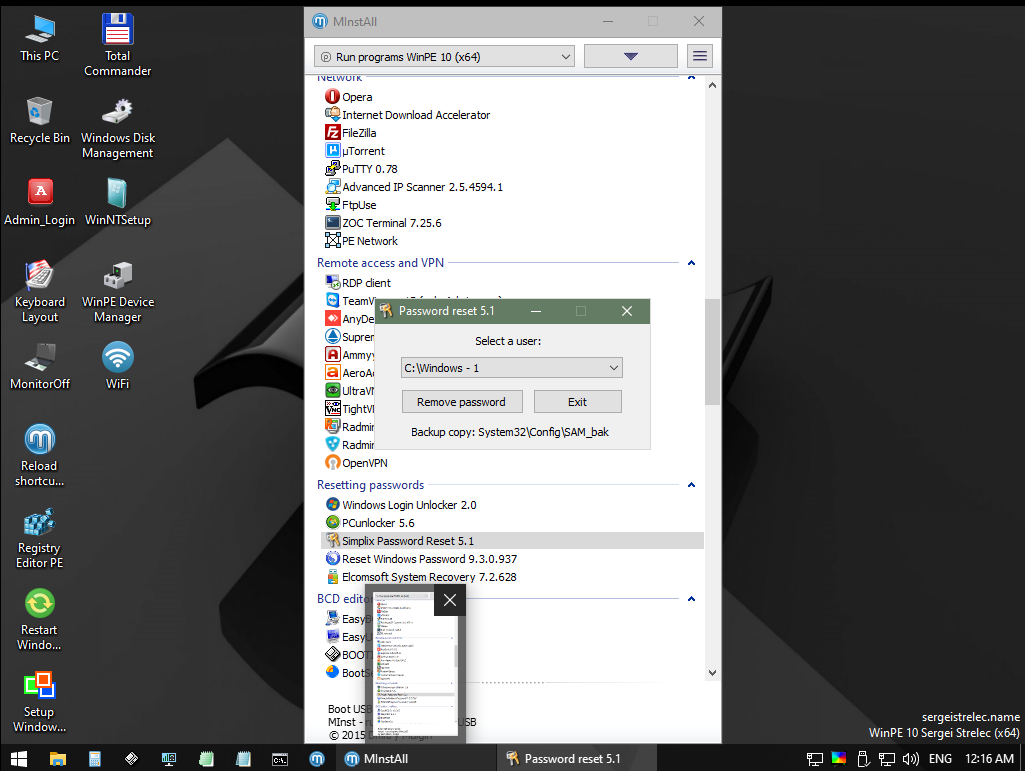
In this window, we will select the account whose password we want to change. (If there is only one account, it will be automatically selected)
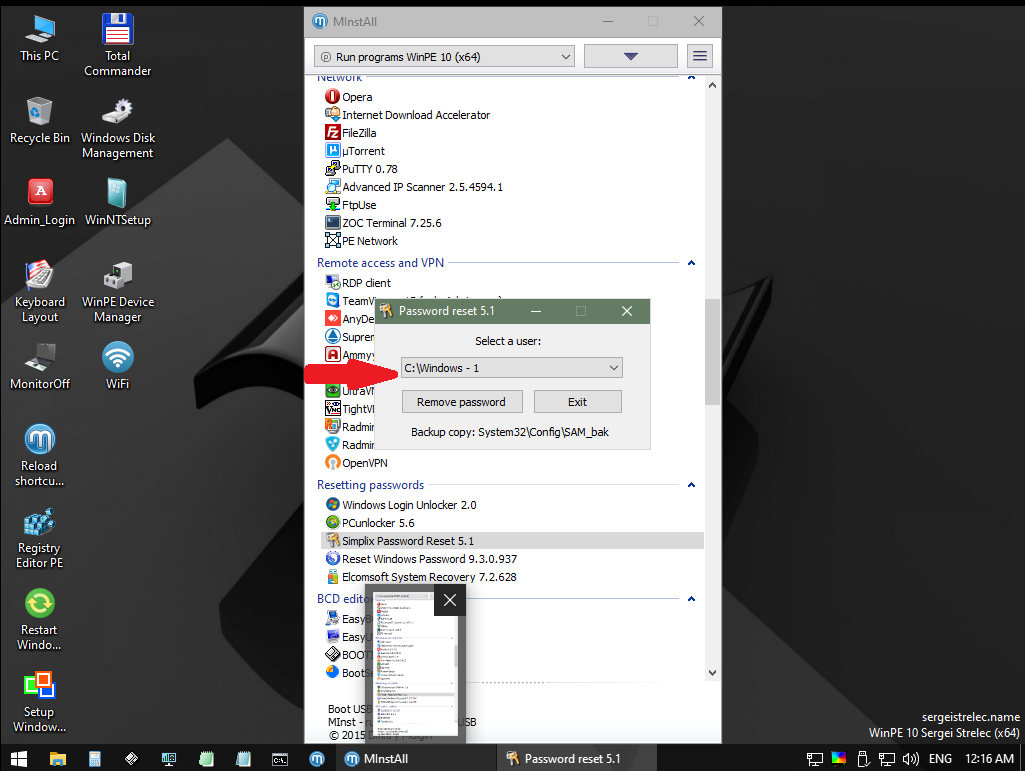
and then click on the Remove Password button 
He will ask us if we are safe, we will press OK.
Now that we are done, we will click on “Start” and restart your computer
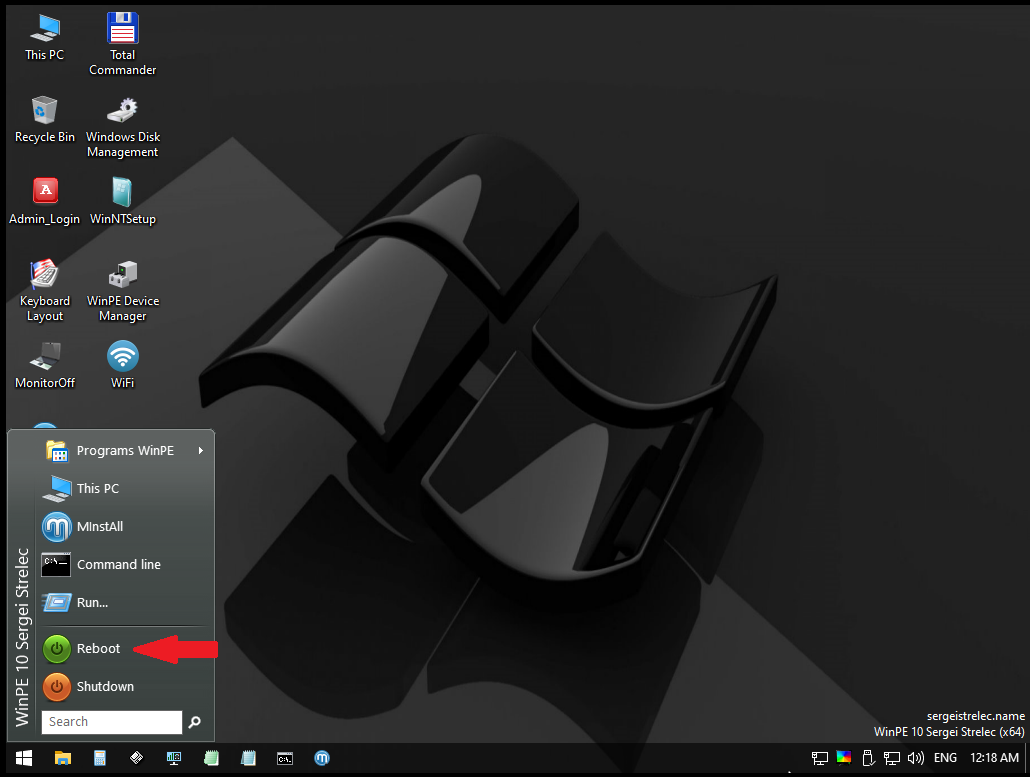 .
.
That’s it, now the computer will open normally, and our user is without a password.
There are a few other tools out there to do this, but since it is the simplest I chose it. If you understand a little more, you can choose any of the five tools there.
Attention! Since any touch can change things and delete them from the computer, (so much so that it can ruin the operating system), if you don’t have prior knowledge of computers, be sure to stick to the instructions here and not open the PE with which we have other programs at all.
If you follow the instructions, you shouldn’t have any damage to your computer.
This manual is at your own risk and I take no responsibility for any damage caused by it.
I hope you will benefit from this.
I would be very happy to receive comments and comments about the guide.
Noted there that it won’t work with a microsoft account. only local account.
Well then no use of the tool because you won’t have this issue on a local account
It’s meant for if you forgot your pin. No clue how Microsoft works or what a Microsoft account means in terms of the pin but I once used a trick by tricking the computer as if it’s broken (turning off while turning on multiple times) and getting system cmd from there to change password. Dunno if that can work with microsot account.
I intentionally gave a link because the thread says there is also a tool to reset a Microsoft account.
Ask Techloq to uninstall filter.
Does someone have backend access like an IT?
It’s also good to always have a second user available, for issues like these.
The past few messages can be moved to any of these 2 links.
when u make a windows account and login in on a computer it asks for this until you make a password on the computer
Sometimes you can just turn it off, turn it on back on again, play around, and then eventually it will wake back up and allow you to input the PIN…
Use it or Hiren’s Boot CD PE to unlock the local admin account, then use that to unlock the Microsoft account
What ended up happening were you able to log in, and if yes how?
Techloq removed after some time it was tricky
You can unlock a Microsoft Account with Hirens Boot CD!
Use Windows Login Unlocker you just have to “downgrade” it to a local account (this works because local/Microsoft account associations are done via the registry and this manipulates the registry)
This won’t bypass BitLocker though